First steps
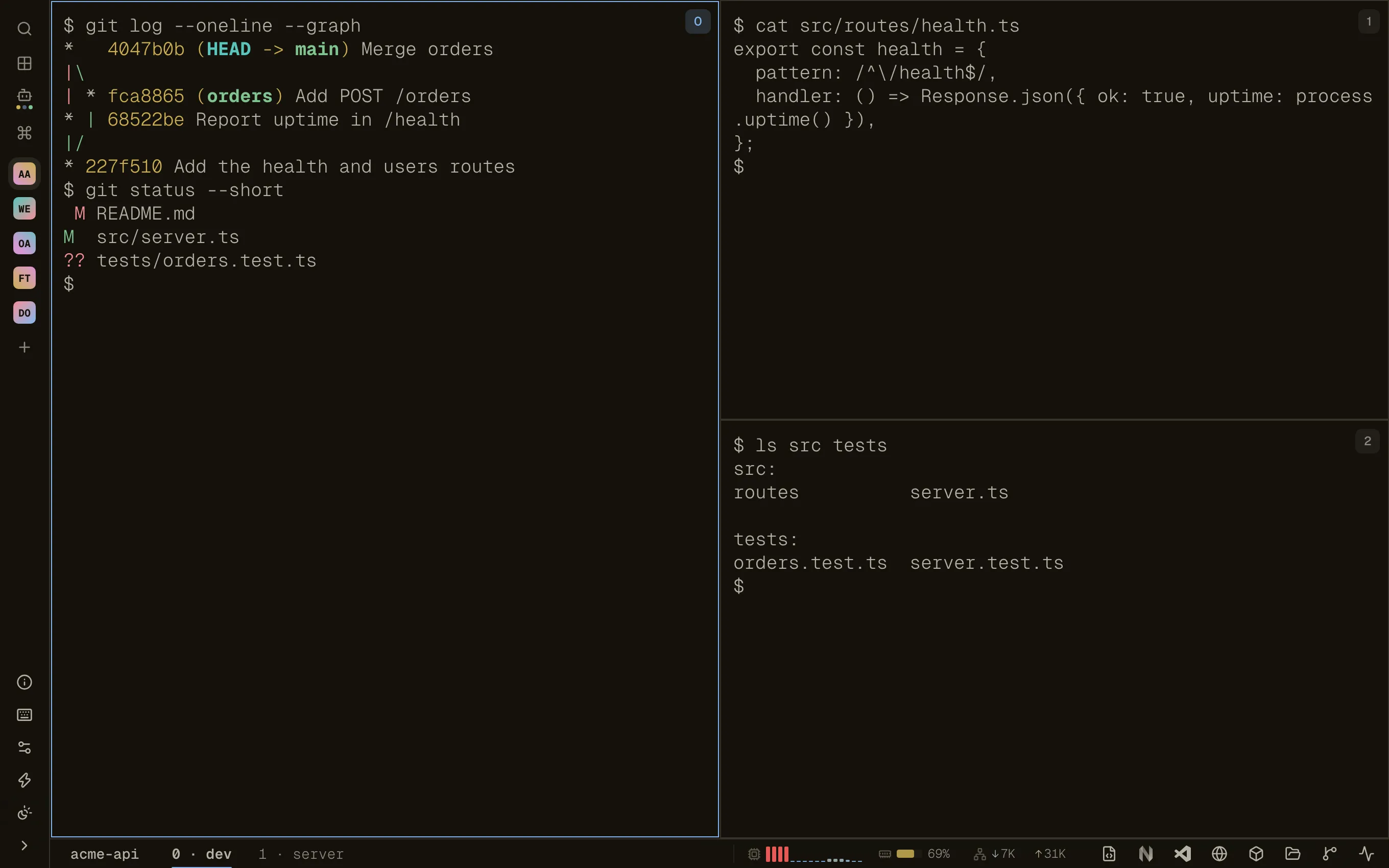
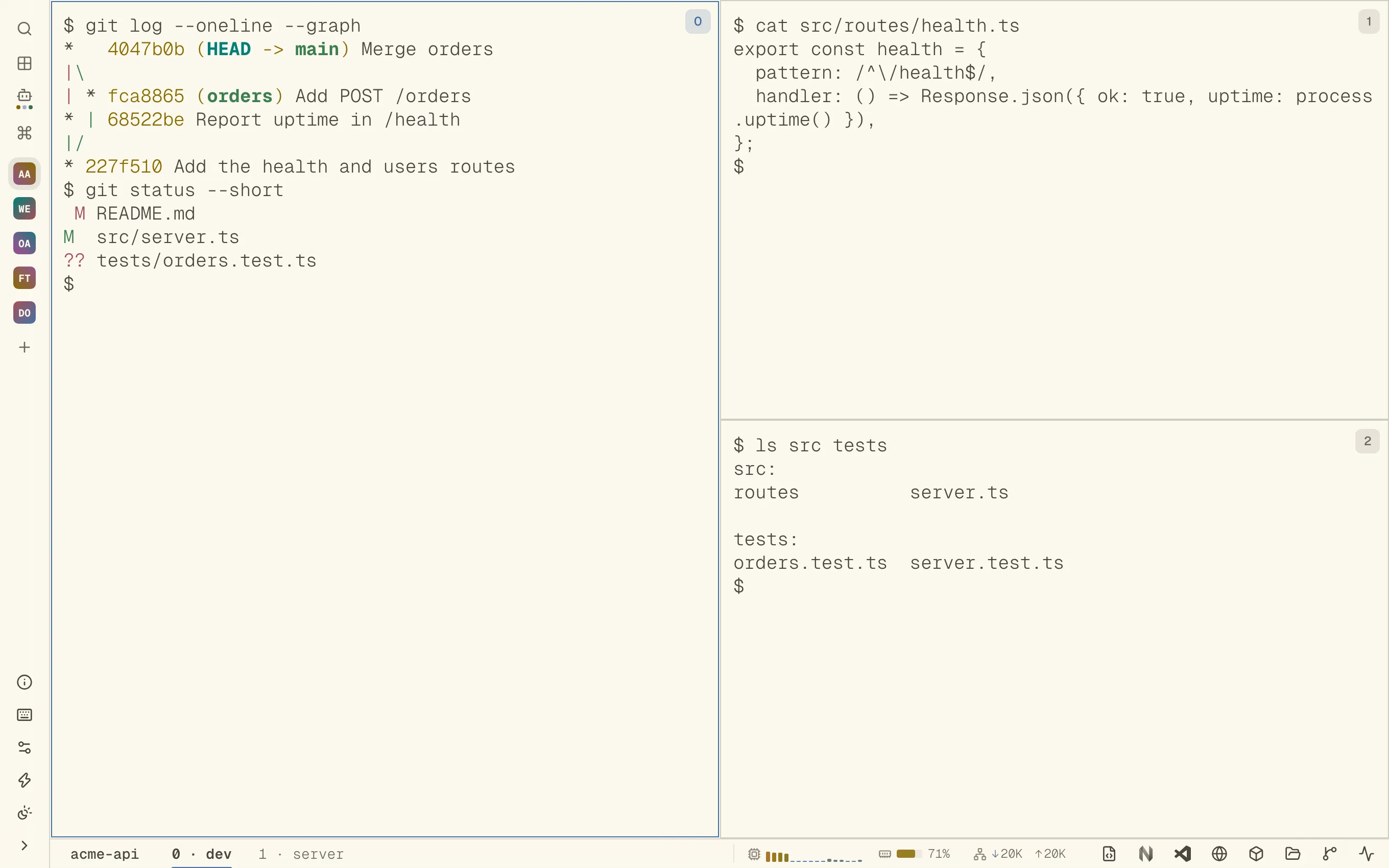
btmux opens with one session, one window, and one pane running your shell.
Split your first pane
Section titled “Split your first pane”- Press
Ctrl+A, release, then press%. A new shell opens to the right. - Type
echo helloand press Enter. The output appears in the right pane. - Press
Ctrl+A, release, then press the Left arrow. You can type in the original shell again while the output stays visible on the right.
Ctrl+A is the default prefix. In the shortcuts below, <prefix> + %
means the sequence you used in step 1.
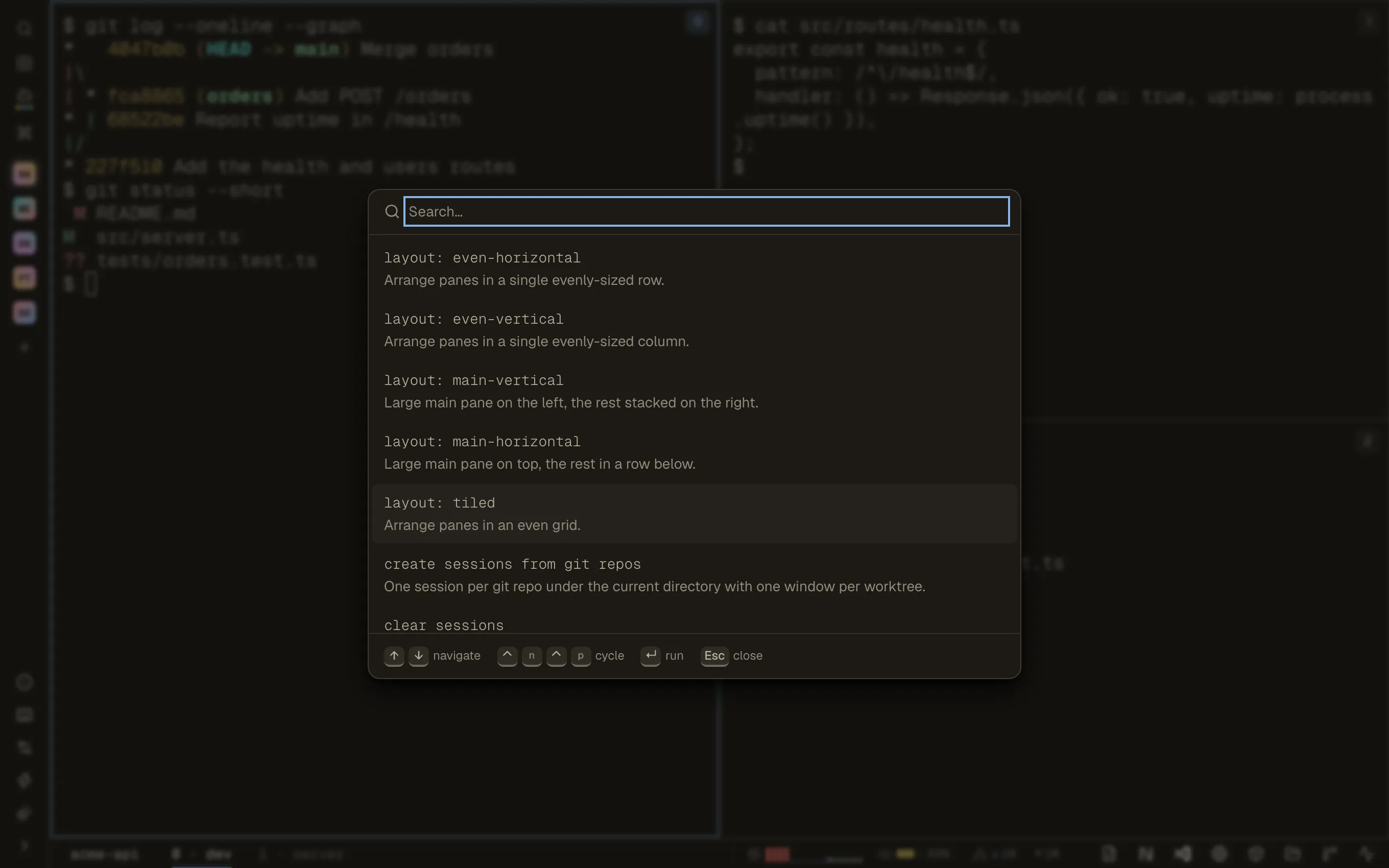
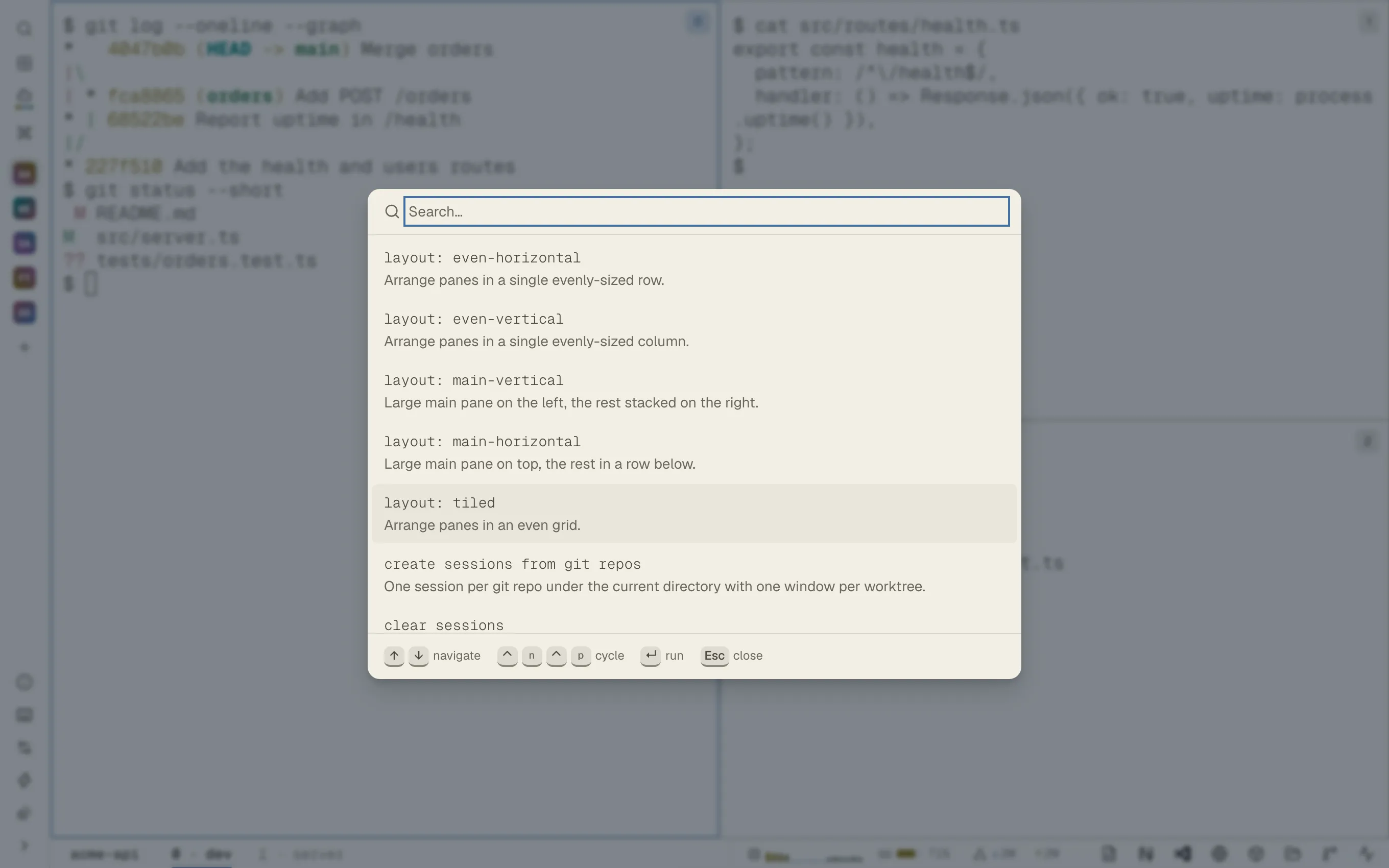
<prefix> + ?lists every key binding.<prefix> + :orCmd+Shift+P(Ctrl+Shift+Pon Windows and Linux) opens the command palette. Type to filter, Enter to run.
| Key | Action |
|---|---|
<prefix> + % |
Split left and right |
<prefix> + " |
Split top and bottom |
<prefix> + Arrow |
Move to the pane in that direction |
<prefix> + z |
Zoom the pane to fill the window, and back |
<prefix> + Space |
Cycle through layouts |
<prefix> + x |
Close the pane (asks first) |
Click a pane to focus it. Drag a divider to resize, or use
<prefix> + Ctrl+Arrow for one cell and <prefix> + Alt+Arrow for five.
Press the prefix twice to send it to the shell.
Windows
Section titled “Windows”Switch windows from the status bar or with these keys.
| Key | Action |
|---|---|
<prefix> + c |
New window |
<prefix> + n / p |
Next / previous window |
<prefix> + 0-9 |
Go to a window by number |
<prefix> + , |
Rename the window |
<prefix> + & |
Close the window (asks first) |
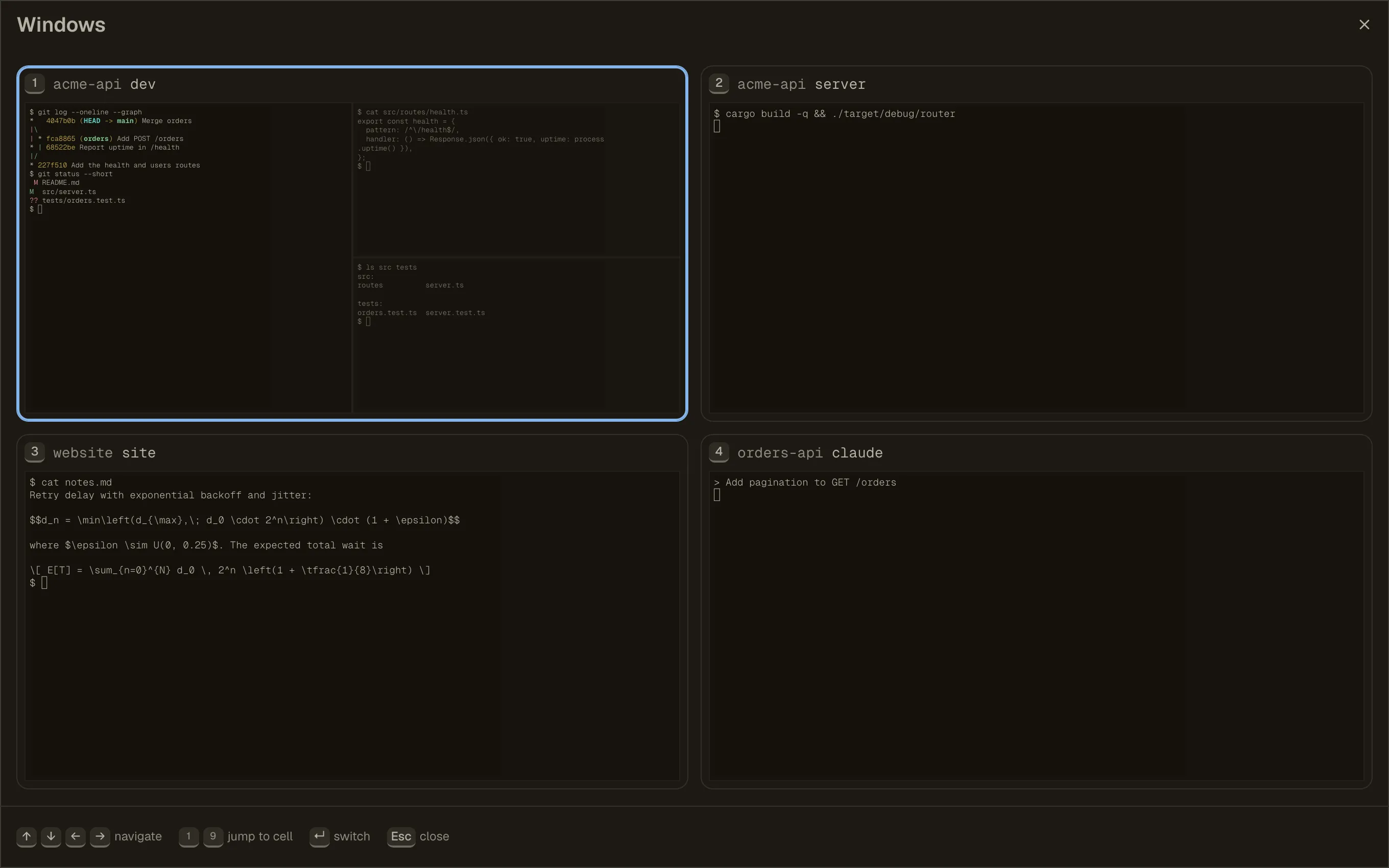
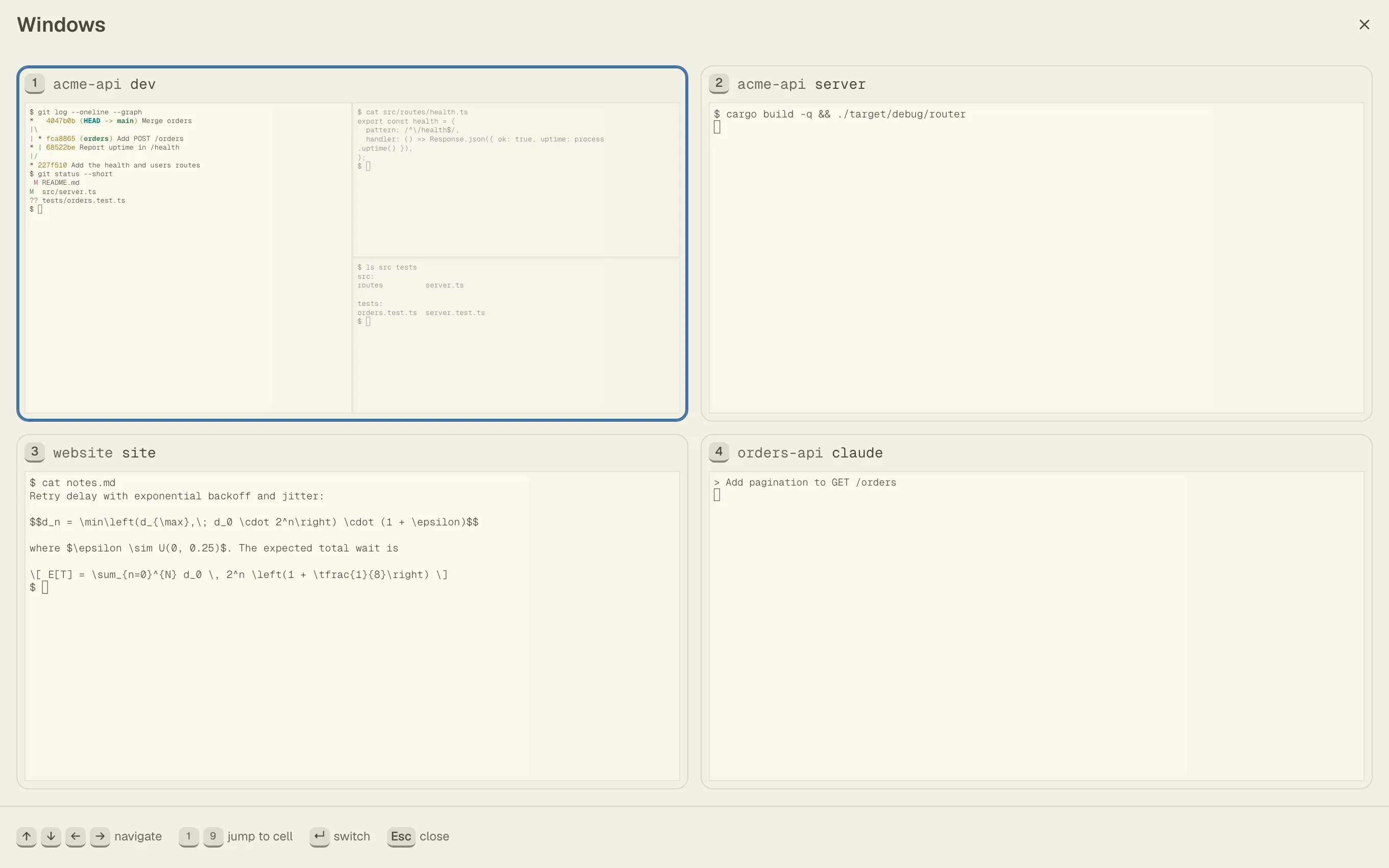
<prefix> + w |
Window grid: live thumbnails of recent windows, from every session |
Sessions
Section titled “Sessions”Group a project’s windows in one session. Shells stay running when you close a browser tab. To keep shells running after the desktop app quits, choose Keep it running after btmux quits when starting its server.
| Key | Action |
|---|---|
<prefix> + C |
New session |
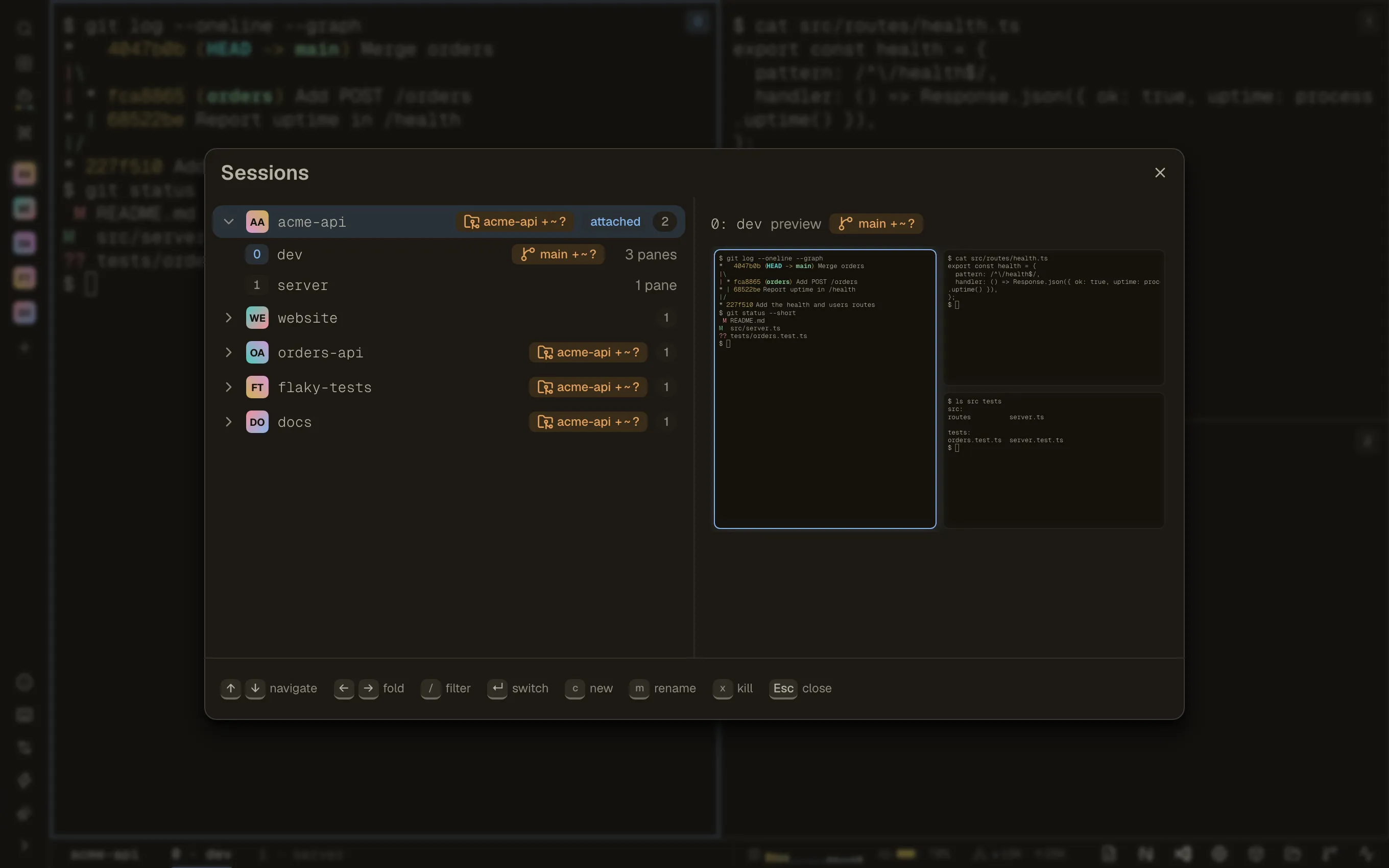
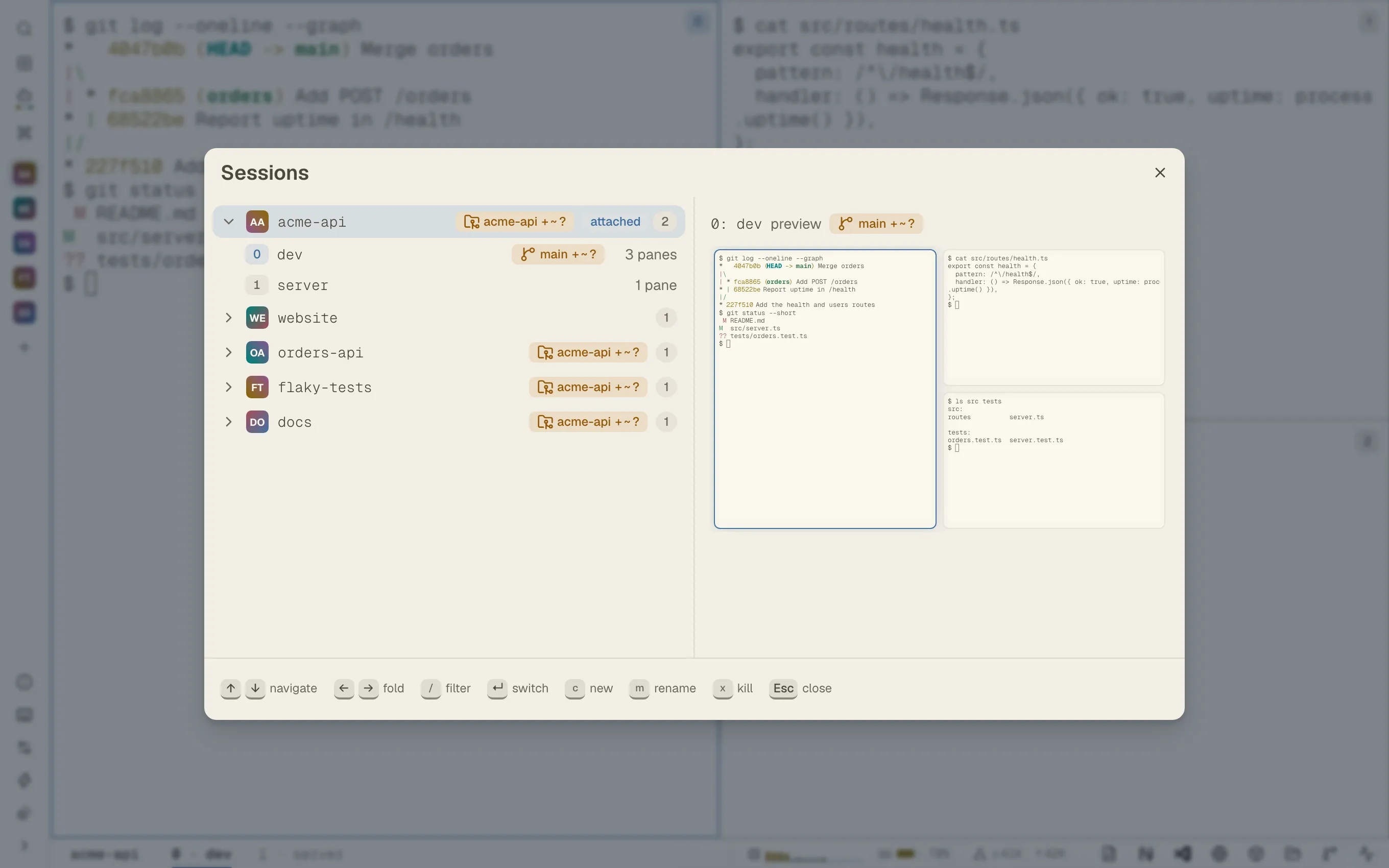
<prefix> + s |
Session switcher |
<prefix> + ( / ) |
Previous / next session |
<prefix> + L |
Back to the last session |
<prefix> + $ |
Rename the session |
In the switcher, press / to filter by session, window, repository, or branch.
Enter switches to the selected row. Use c to create, m to rename, or x
to close.
Scrolling, searching, copying
Section titled “Scrolling, searching, copying”- Scroll with the wheel or trackpad, or
<prefix> + PageUp/PageDown. <prefix> + /searches the scrollback. Enter jumps to the next older match, Shift+Enter to a newer one, and Esc closes it. The search ignores case unless the query has an uppercase letter.- Select text with the mouse and copy as in any app.
<prefix> + ]pastes the clipboard. - Cmd-click a URL (Ctrl-click outside macOS) to open it.
<prefix> + [opens the pane’s scrollback in the configured editor.
Beyond the terminal
Section titled “Beyond the terminal”Press Esc to close a dialog. To hide the editor or browser, press its key again or press Esc twice quickly.
| Key | Opens |
|---|---|
<prefix> + f |
File browser |
<prefix> + g |
Git mode |
<prefix> + e |
Editor |
<prefix> + b |
Browser |
<prefix> + t |
Process and port viewer |
<prefix> + a |
Agent view |
Make it yours
Section titled “Make it yours”Open Settings from the command palette (config: open settings) to change
colors, fonts, key bindings, and wallpapers with live previews. Everything is
also in a config file.