Native editor
<prefix> + e opens the native editor by default. Each pane can have its
own editor tabs. Clients share files and edits live.
Unsaved changes survive a client reload and
btmux upgrade. The editor reloads files changed
on disk or warns you if there are unsaved edits.
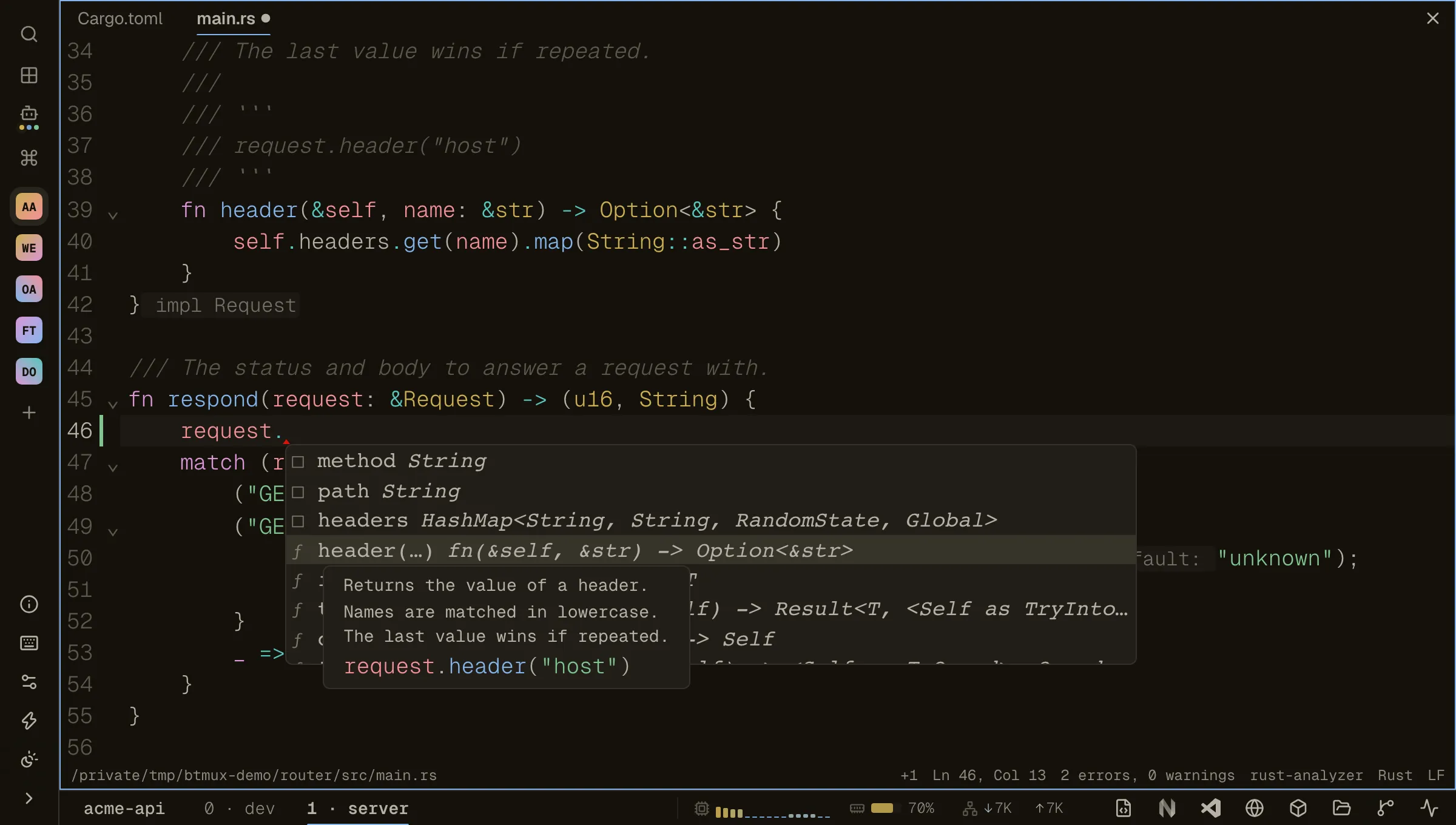
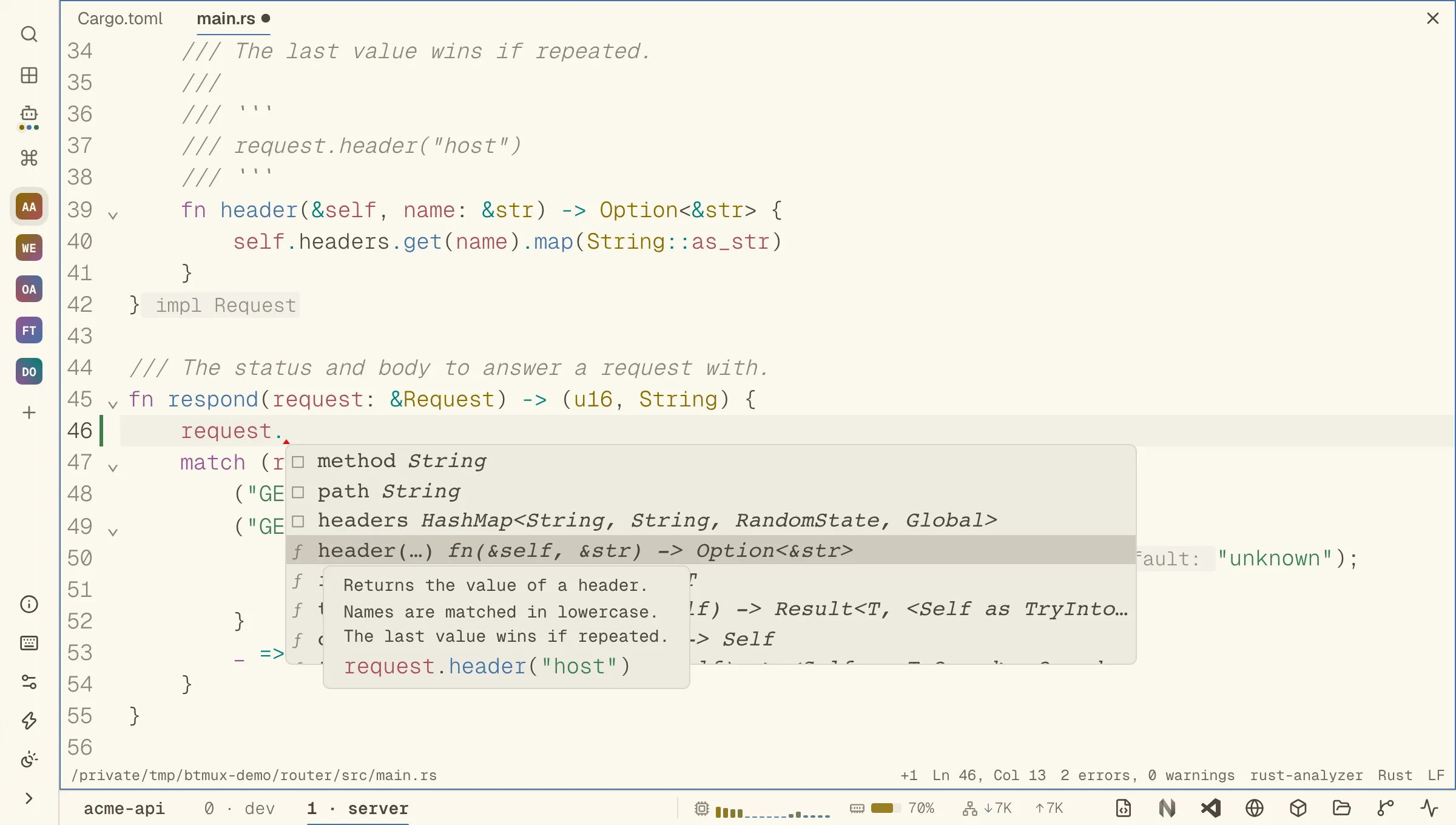
Keys follow VS Code’s defaults. These are the ones to know first:
| Key | Does |
|---|---|
Mod-s |
Saves |
Mod-p |
Quick open: finds a file under the pane’s folder |
Mod-f |
Finds and replaces in the file |
Alt-w |
Closes the file, asking to save unsaved changes |
Alt-PageDown / Alt-PageUp |
Shows the next or previous open file |
Ctrl-- / Ctrl-Shift-- |
Goes back or forward to where you jumped from, across files |
Ctrl-g |
Goes to a line |
Mod-Shift-Enter |
Inserts a line above |
Mod-d / Mod-F2 |
Selects the next or every occurrence of the word |
Mod-k, then another key |
VS Code’s chords; a popup lists them, and other keys type |
| Esc twice | Hides the editor |
<prefix> + ? lists every key the editor has, in its Editor tab, and the
command palette shows each editor command’s keys beside it. Both follow Vim
mode and your own mappings.
Mod is Cmd on macOS and Ctrl elsewhere. Go back and forward are Alt-← and
Alt-→ on Windows, and Ctrl-Alt-- and Ctrl-Shift-- on Linux. Browsers
keep Mod-w and Mod-t, so the editor takes them only in the desktop app:
Mod-w closes the file there, and Close Window moves to Cmd-Shift-W.
Browsers also keep VS Code’s keys for the next and previous file, which the
desktop app adds: Ctrl-Tab and Ctrl-Shift-Tab, and Cmd-Alt-→ and
Cmd-Alt-← on macOS or Ctrl-PageDown and Ctrl-PageUp elsewhere.
In find and replace, Enter goes to the next match and Shift-Enter to the
previous one; Alt-Enter selects every match. In the replace field, Enter
replaces the next match and Mod-Alt-Enter replaces them all. The buttons
beside the find field match case, whole words, or a regular expression.
Each tab has an X that closes it, shown on the active tab and on hover; on a
tab with unsaved changes, a dot takes its place until you hover. A middle
click closes a tab too, and so does Delete on a focused tab. Right-click a
tab to close the other files or those to its right; files with unsaved
changes stay open. The editor-close-others action, also in the command
palette, closes every file but the shown one.
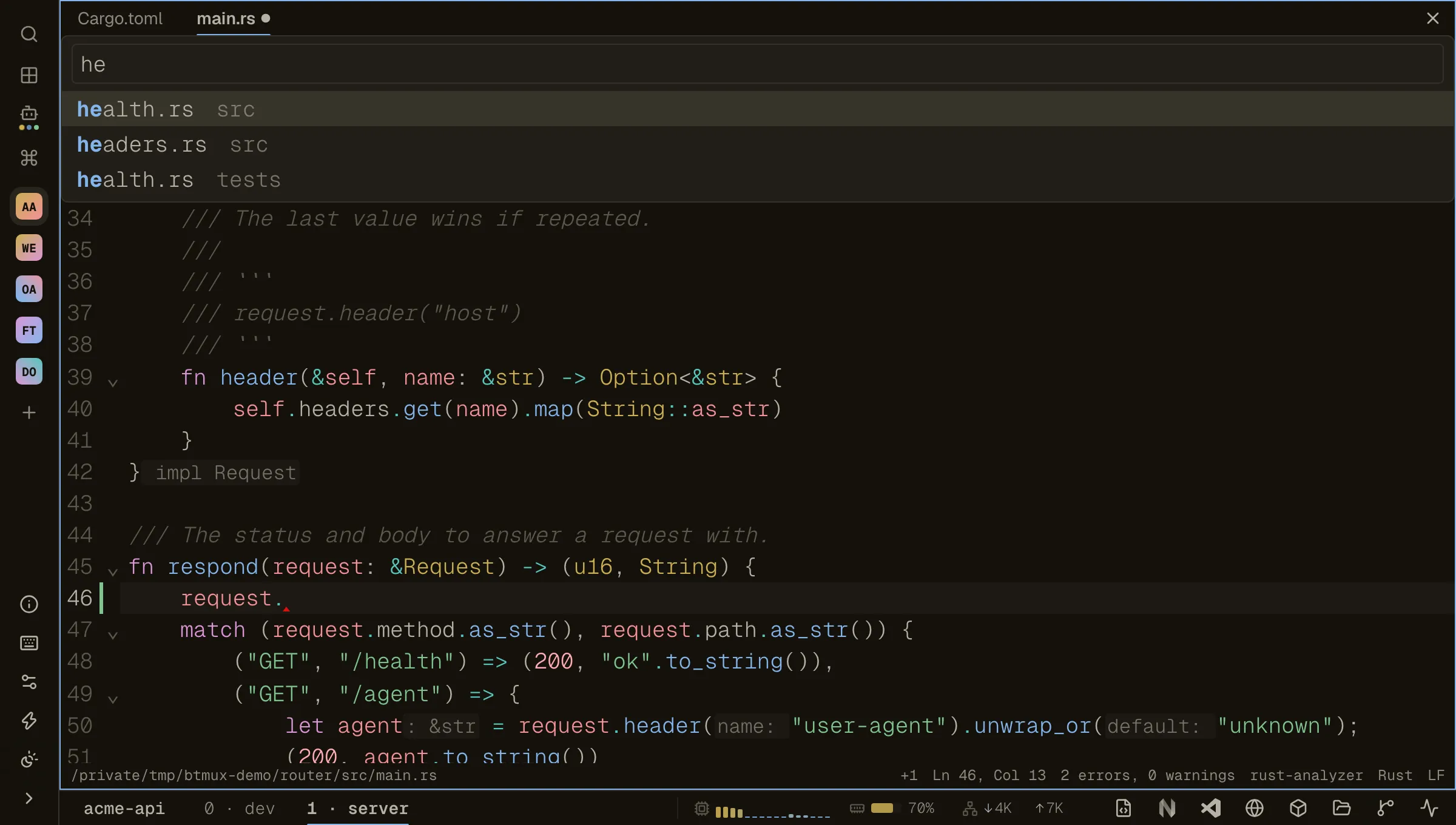
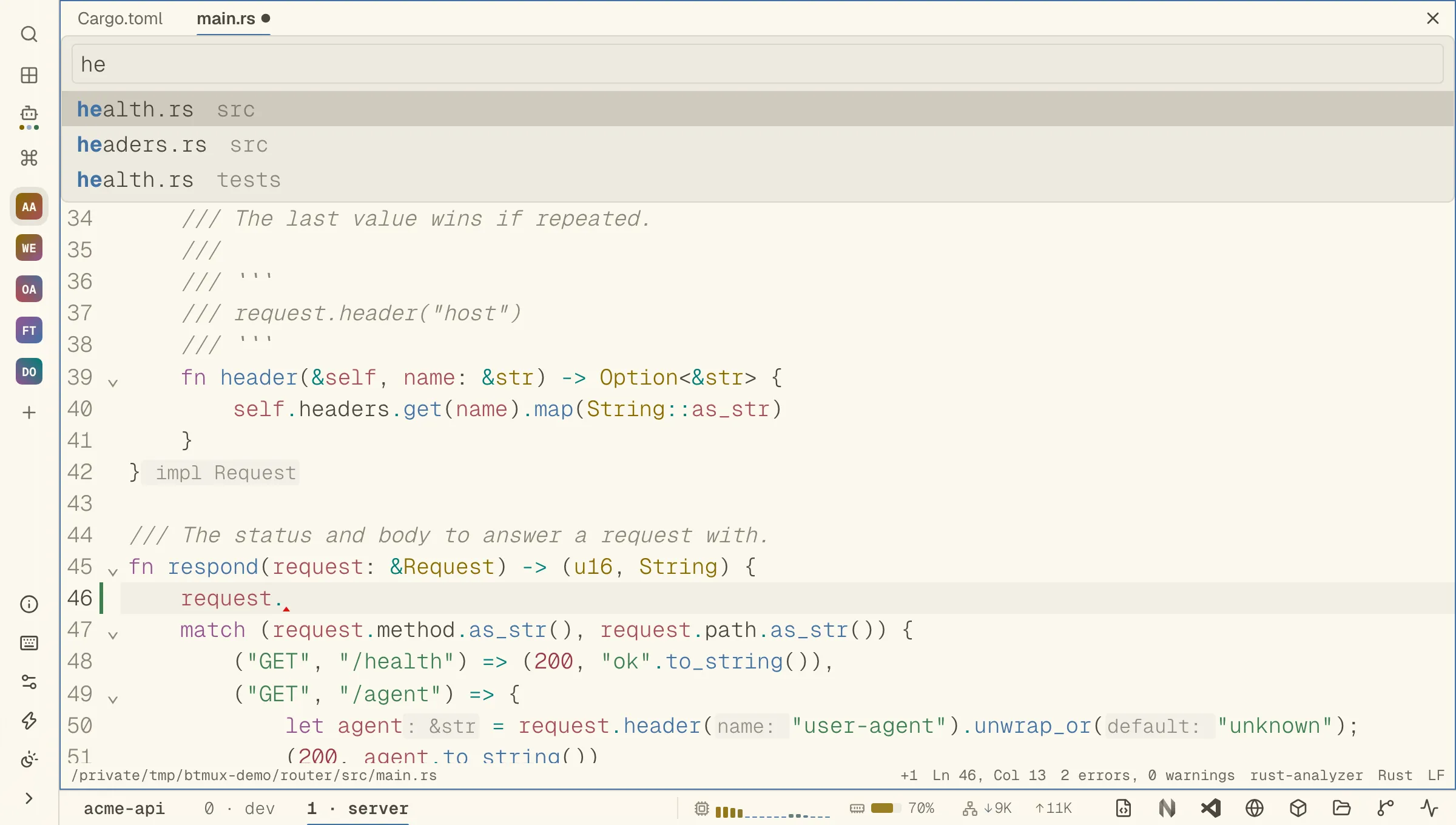
Quick open starts with open and recent files. Append :42 to open a file at
line 42, or enter :42 alone to jump there in the current file.
Long lines wrap at the editor’s width; wrapping only changes the display,
never the file. To scroll them sideways instead, set
[native-editor] soft-wrap = false, also in Settings as Soft wrap.
In the completion menu, quick open, and other pickers, Ctrl-n and Ctrl-p
move down and up, as in Vim, and so do Ctrl-j and Ctrl-k, as in fzf.
Off macOS, browsers keep Ctrl-n for a new window, so use Ctrl-j there;
the desktop app gets both. While completions are open, these keys move in
them rather than opening quick open or starting a Mod-k chord.
Vim mode
Section titled “Vim mode”[native-editor] vim = true, also in Settings, adds Vim keybindings
(codemirror-vim). It applies to
open editors at once.
- The status line shows the mode, and the keys of a command you haven’t finished.
:wsaves (:w!overwrites changes made on disk),:qhides the editor and keeps unsaved changes,:wqor:xsaves and hides it, and:bdcloses the file (:bd!discards unsaved changes).:bnand:bpshow the next and previous open file, and:BufOnlycloses the others.:copenand:ccloseshow and hide the problems list with every file’s problems, and:cwshows it only if there are any.:lopen,:lclose, and:lwdo the same with the shown file’s, as Vim’s location list; each closes only its own list.Tabon the:line completes the command’s name;TabandShift-Tabagain cycle through the names that match.- A double Esc hides the editor only from normal mode with no command pending, so leaving insert mode never hides it.
- Ctrl chords such as
Ctrl-dandCtrl-vgo to Vim, except the btmux prefix and shortcuts the browser keeps (such as Ctrl-W outside macOS, so<C-w>dworks only there and in the desktop app). - Mode and registers are per client; edits are shared as always.
- On macOS, holding
hjklin a browser opens the accent menu instead of repeating; see Key repeat on macOS.
Mappings
Section titled “Mappings”Vim predates language servers, so these follow Neovim’s own defaults where it
has them, and otherwise what most Neovim configurations use
(kickstart.nvim,
gitsigns.nvim). <leader> is
Space.
| Keys | Does |
|---|---|
gd, Ctrl-] / gD |
Goes to the definition / declaration |
K |
Shows the hover |
grn |
Renames, across files |
gra |
Code actions, also for a visual selection |
grr |
References |
gri / grt |
Goes to the implementation / type definition |
grx |
Runs the code lens on the line |
gO / gW |
Symbols in the file / workspace |
an / in in visual mode |
Grows / shrinks the selection |
gq with a motion |
Formats, or wraps lines without a server |
<leader>f |
Formats the file, or the visual selection |
]d / [d, ]D / [D |
Next / previous diagnostic, last / first |
<C-w>d |
Shows the diagnostics on the line |
Ctrl-o / Ctrl-i |
Goes back / forward, across files |
gt / gT, ]b / [b |
Next / previous open file |
The Git signs mappings start with <leader>h. Neovim’s
insert-mode Ctrl-s (signature help) isn’t mapped, as Ctrl+S saves outside
macOS; signature help shows as you type a call, or with Mod-Shift-Space.
Which keys come next
Section titled “Which keys come next”Pause after the start of a mapping, such as the leader or g, and a popup
lists the keys that can follow and what they do, as
which-key.nvim does. It also lists
Vim’s own keys after g, z, [, and ], motions and text objects after an
operator such as d, and the registers after ". Esc drops the keys typed so
far. [native-editor] which-key = false turns the popup off.
Your own mappings
Section titled “Your own mappings”Map keys to any btmux action (the editor-* ones below, or any in
[keys]), or to other keys:
[native-editor]leader = ","
[native-editor.vim-keys]"<leader>ff" = "editor-quick-open""<leader>d" = { action = "editor-problems", desc = "Problems" }"<leader>f" = { action = "editor-format", modes = ["normal", "visual"] }"<C-h>" = "navigate-left""jk" = { keys = "<Esc>", modes = ["insert"] }"gd" = "none"
[native-editor.vim-groups]"<leader>f" = "find"| Setting | Does |
|---|---|
leader |
The key <leader> stands for: Space by default, or one key like , |
vim-keys |
Keys in Vim notation, mapped to an action, a table, or "none" |
modes |
normal (the default), visual, insert |
desc |
What the popup shows; the action’s name by default |
keys |
Keys Vim gets instead of an action |
"none" |
Removes the default mapping on those keys |
vim-groups |
The name the popup shows for keys that start several mappings |
timeout |
How long a mapping that starts a longer one waits, in ms (1000) |
Keys are written as in Vim: <C-w>, <A-x> (Alt), <D-k> (Cmd), <S-Tab>,
<Space>, <CR>, <Esc>. An action in insert mode needs a key that types
nothing, such as <C-k>; map typed keys like jk with keys.
Keys that start a mapping wait for the rest, as in Vim. When the next key
doesn’t continue one, the longest mapping among the keys runs and the rest
are mapped again; keys no mapping starts with go to Vim, so gg and viw
still work. A mapping that also starts a longer one, such as <leader>h
beside <leader>hs, runs once no key follows within timeout. A Vim command
the leader shadows (with ,, repeating f backward) runs only when the next
key isn’t mapped. Esc drops keys typed so far, so it can’t be mapped.
Language servers
Section titled “Language servers”The editor shares one instance of each language server per project root across
clients. The root is the outermost directory in the Git worktree with a marker
for that language, such as Cargo.toml. The status line shows each server
with a dot. Hover, focus, or tap it for details; narrow panes keep only the
dot. With animations = false, dots don’t pulse.
| Dot | Server |
|---|---|
| Green | Ready |
| Pulsing blue | Working, such as indexing |
| Pulsing gray | Starting |
| Yellow | Not responding: a request is unanswered and it sent nothing since, for longer than its timeout |
| Red | Failed: not found, silent for its timeout while starting, or crashed 3 times in a minute |
A server that isn’t responding goes back to green once it sends anything.
btmux searches its own PATH and then your shell’s PATH. Preconfigured
servers include rust-analyzer, typescript-language-server, ty and ruff
(Python), gopls, clangd, lua-language-server, nil (Nix), bash-language-server,
taplo (TOML), just-lsp (justfiles), yaml-language-server, and
vscode-langservers-extracted (JSON, CSS, HTML), and rumdl and harper-ls
(Markdown: rumdl lints, formats, and follows links; harper-ls checks spelling
and grammar). The About dialog’s Health tab
lists each configured server and whether btmux found it.
A file can have several servers, as Python has ty for types, completions, and navigation and ruff for linting and formatting. Each gives its own diagnostics, code actions, hovers, inlay hints, code lenses, and completions. Everything else, such as formatting and go to definition, comes from the first server listed that can do it. Signature help and the references panel come from the first server, and references from a later one show in a picker. A server that isn’t installed or fails is left out, so the next one takes its place.
Add or replace languages and servers in config.toml:
[[language]]name = "python"file-types = ["py", "pyi"]roots = ["pyproject.toml", "setup.py"]language-servers = ["basedpyright"]
[language-server.basedpyright]command = "basedpyright-langserver"args = ["--stdio"]config = { basedpyright = { analysis = { typeCheckingMode = "strict" } } }
file-types are extensions; file-names are whole names, such as
Makefile, matched ignoring case. config answers the server’s
workspace/configuration requests. timeout (seconds, default 20) is how
long a server may stay silent while starting or on a request; 0 turns these
checks off. Changes
apply to servers started afterward. nil releases since 2025-06-13 format with
nixfmt by default (Nixpkgs builds in its own); for older ones, or another
formatter, set config = { nil = { formatting = { command = ["alejandra"] } } }
under [language-server.nil], along with command = "nil". Files in a
sandboxed session’s mounts get their servers inside the VM.
rumdl runs with its default rules, minus the line length limit (MD013),
and ignores its config files, the repository’s (.rumdl.toml,
.markdownlint.json, …) and your own, since they can name commands rumdl
runs on code blocks when a file opens. If you open only repositories you
trust, replace it with a table that lets rumdl read them:
[language-server.rumdl]command = "rumdl"args = ["server"]Diagnostics, semantic highlighting, inlay hints, code lenses, folding, and completion with signature help need no keys. The rest:
| Feature | Keys |
|---|---|
| Hover | The mouse, or Mod-K Mod-I |
| Go to definition | F12, or Cmd-click (Ctrl-click elsewhere) |
| References | Shift-F12 |
| Rename, across files | F2 |
| Code actions | Mod-. |
| Symbols in the file | Mod-Shift-O |
| Symbols in the workspace | Mod-Alt-O, or Mod-T in the desktop app |
| Calls to the symbol | Shift-Alt-H |
| Grow or shrink the selection by syntax | Ctrl-Shift-Cmd-→ / ← (Shift-Alt-→ / ← elsewhere), or Mod-I |
| Next or previous problem | F8 / Shift-F8 |
| Show or hide the problems list | Mod-Shift-M |
| Format the document or the selection | Shift-Alt-F; Mod-K Mod-F the selection |
| Fold or unfold everything | Mod-K Mod-0 / Mod-K Mod-J |
Diagnostics are underlined, and hovering one shows its message. With
[native-editor] virtual-text = true, also in Settings as Inline
diagnostics, each line’s most severe error, warning, or info also shows at
the end of the line, with a count of the others. Hints don’t, since they
mostly fade unused code.
Problems list
Section titled “Problems list”The problems list is a quickfix list for diagnostics: every file’s errors, warnings, and infos, errors first, then by file and line. It lists what the language servers of the editor’s open files report, including files that aren’t open. It updates as servers publish. Hints aren’t listed.
Mod-Shift-M (:copen in Vim mode) shows it and moves focus to it; picking
a problem opens its file at the problem, and the list stays open. To list only
the shown file’s problems, as VS Code’s “Show Active File Only”, pick This
file in its header or press f; the editor-file-problems action (:lopen
in Vim mode) opens it that way. Workspace lists every file’s again.
| Key | Does |
|---|---|
↓ / ↑, j / k |
Next or previous problem |
Enter, o, click |
Go to the problem |
f |
This file’s or every file’s |
Esc, q |
Hide the list |
Mod-Shift-M |
Hide the list, or show all |
[native-editor] format-on-save = true formats on every save. Renames and
code actions also change files that aren’t open: those wait in the editor,
unsaved, under “Other unsaved files”.
Git signs
Section titled “Git signs”Git signs mark changes from the index. Following gitsigns.nvim, green marks additions, blue marks edits, and red marks deletions. Signs and status line counts update as you edit or stage. Click a sign to preview, stage, or reset its hunk.
| Action | Keys | Vim |
|---|---|---|
| Next or previous hunk | Alt-F5 / Shift-Alt-F5 |
]c / [c |
| Preview the hunk | Click its sign | <leader>hp |
| Stage the hunk, or the selection’s hunks | <leader>hs |
|
| Reset the hunk to the index | <leader>hr |
|
| Stage or reset the whole buffer | <leader>hS / <leader>hR |
|
| Blame the line, with the commit message | <leader>hb |
|
| Toggle blame at the end of the cursor line | <leader>tb |
|
The hunk as a text object (dih, vih) |
ih |
Staging writes the buffer’s text to the index, saved or not. Resetting edits the buffer, so undo brings the change back.
Actions
Section titled “Actions”The command palette has every command on this page as an editor-* action,
shown with the keys that run it in the editor. They include
editor-quick-open, editor-go-to-definition, editor-format,
editor-stage-hunk, and editor-go-back, plus the symbol’s outgoing calls,
supertypes, and subtypes. Bind them after the prefix in
[keys], or in Vim mode in
vim-keys.