Coding agents
btmux tracks Claude Code, Codex, Gemini CLI, Antigravity CLI, and OpenCode in your panes so you can see which agents need attention.
Run this once to set up every agent btmux finds (Claude Code, Codex, Gemini CLI, and Antigravity CLI):
btmux skill setupIt installs, for each agent:
- Status hooks, which report the agent’s state to btmux for more reliable status, notifications, and completion messages than detection by process and screen alone.
- A skill, for Claude Code, Codex, and Antigravity CLI, that teaches the
agent to use btmux: to open windows and panes, run commands there and read
their output, ask you with widgets, and
coordinate other agents. It goes in
~/.claude/skills/btmuxfor Claude Code (underCLAUDE_CONFIG_DIRif set),~/.gemini/config/skills/btmuxfor Antigravity CLI, and~/.agents/skills/btmuxfor Codex and other agents, and tells the agent to read the guidebtmux skill showprints. - A context hook, for the same agents, that tells the agent at the start of each session which btmux session, window, and pane it runs in.
The skill and the context hook get their text from the installed btmux when
the agent uses them, so upgrading btmux updates what agents are told. Hooks
are merged into the agent’s settings, leaving your own hooks alone. Running
setup again is safe and updates what an older btmux installed.
| Command | Does |
|---|---|
btmux skill setup |
Install or update everything above |
btmux skill status |
Show what is installed for each agent |
btmux skill remove |
Remove it, leaving your other hooks alone |
btmux skill show |
Print the guide |
setup and remove take --agent claude, codex, gemini, or agy
(repeatable), --dry-run to report what would change, and --json. With no
agent found, setup puts the skill alone in ~/.agents/skills. A btmux skill
that btmux didn’t install is left alone and reported as a conflict, and the
context hook isn’t added; --force moves the skill to the trash and replaces
it.
Restart running agents to load new hooks. Codex also skips new and changed
hooks until you trust them: run /hooks in Codex and trust btmux’s after
setup, and again after an upgrade changes them.
Antigravity CLI’s hooks go in ~/.gemini/config/hooks.json, as hooks named
btmux and btmux-context beside your own. A hook of yours with one of those
names is left alone and reported as a conflict, and turning btmux’s off with
"enabled": false survives setup. Antigravity has no hook for permission
requests, so btmux sees those on the screen.
To paste the status hooks yourself instead, print them with
btmux generate-claude-code-hooks, generate-codex-hooks,
generate-gemini-cli-hooks, or generate-antigravity-hooks. The same guide is in the repository as
skills/btmux, which
npx skills add btmux-dev/btmux installs as a copy that doesn’t follow
upgrades.
States
Section titled “States”| State | Meaning |
|---|---|
| working | A turn is running |
| waiting | The turn ended, but background work will resume it |
| blocked | Waiting for you: a permission request or a question |
| done | The turn finished and you haven’t looked yet |
| idle | Waiting for a prompt |
| unknown | An agent is running, but btmux can’t tell what it is doing |
The state appears as a badge on the pane, and the status bar marks windows
with a working agent. done becomes idle once you view the pane. Work an
agent leaves running between turns, such as Claude Code’s background shells,
is shown beside the state. An agent at its prompt with such work is
waiting, since it starts again by itself once the work ends: waiting on 2 shells, 1 monitor. btmux wait and wait_for_agent keep waiting through
it.
Agent view
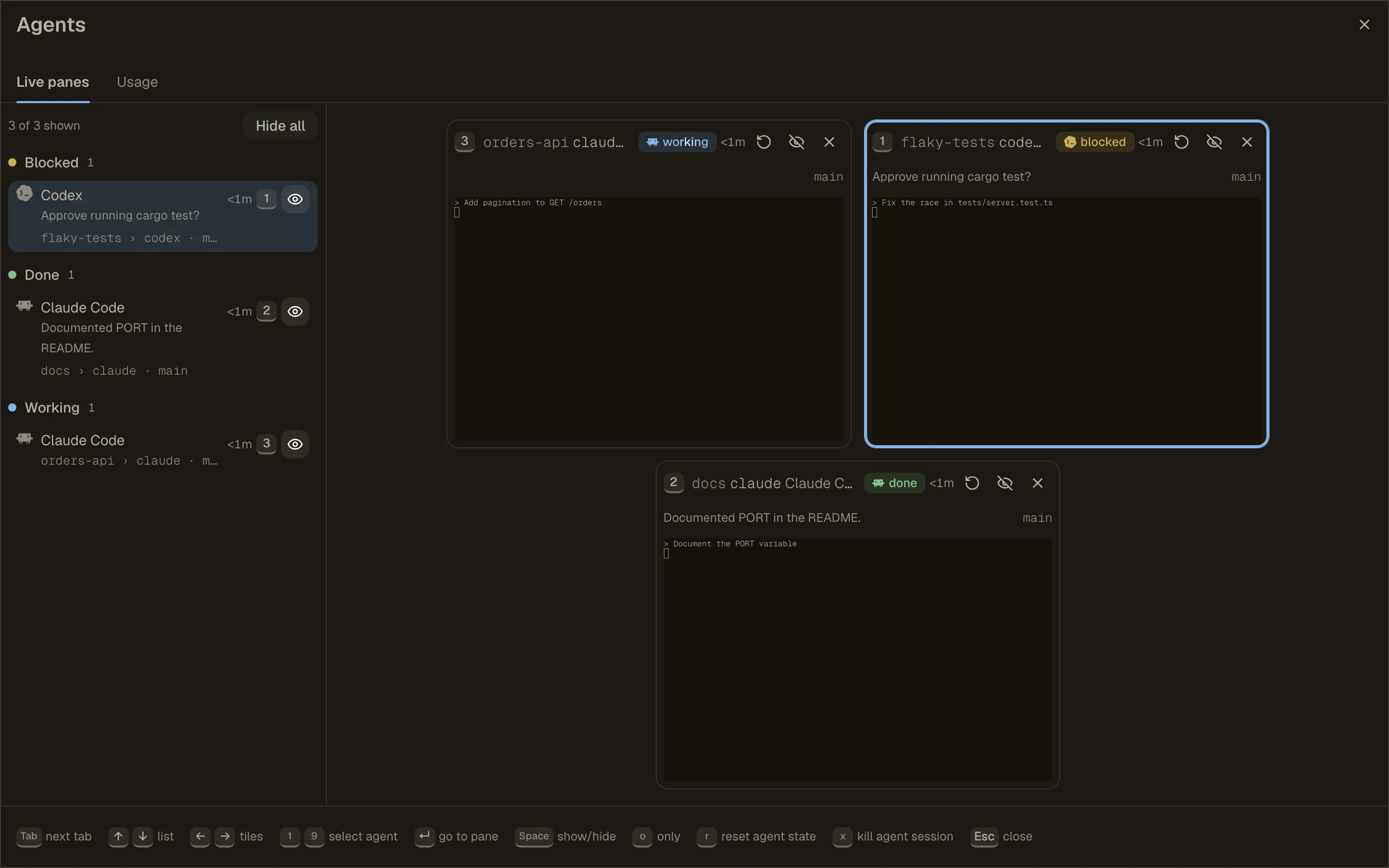
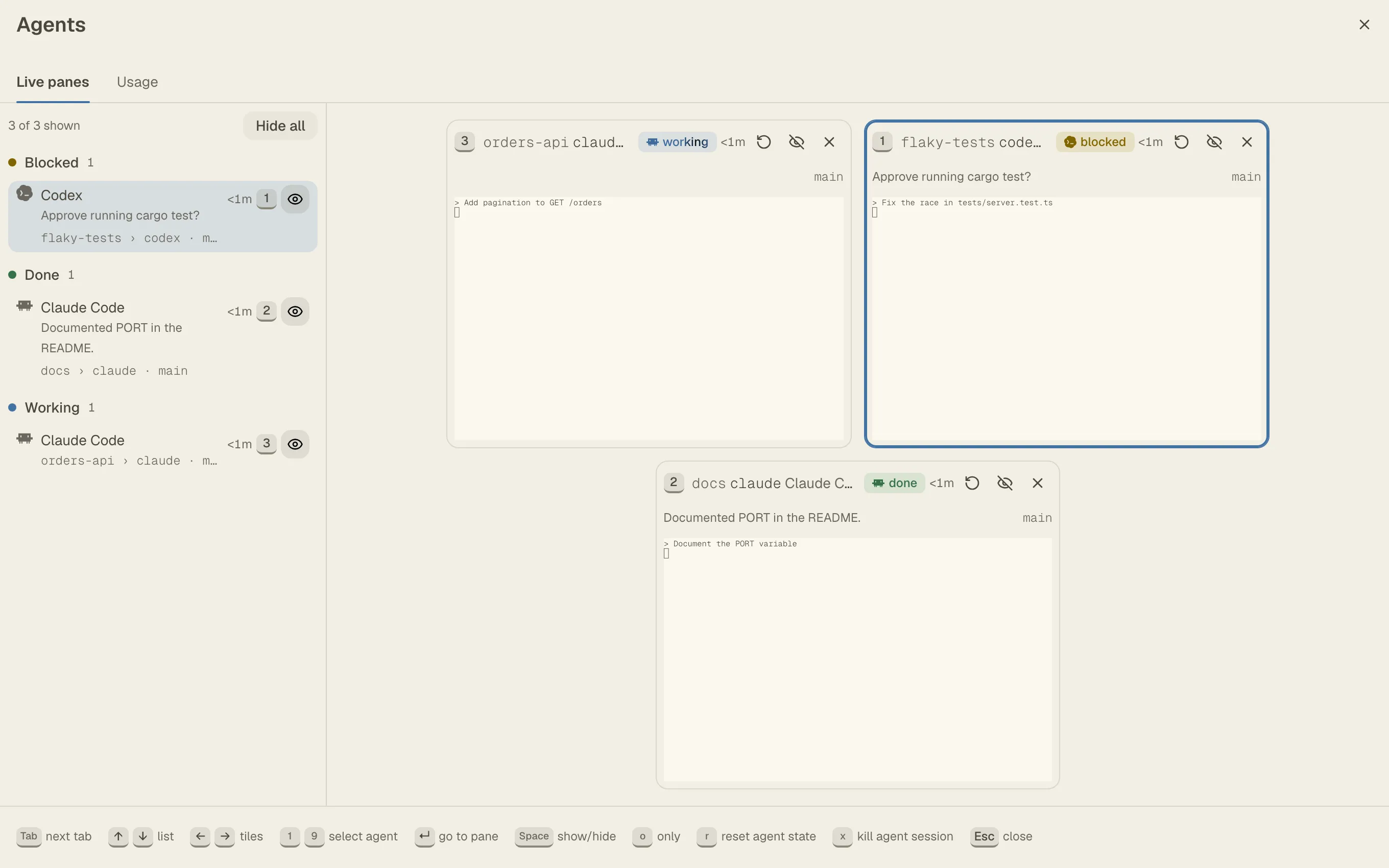
Section titled “Agent view”<prefix> + a lists every agent on the server, grouped by state with the most
urgent first: blocked, then done, working, waiting, and
idle. Within a
group, the agent that has waited longest comes first.
Each row shows the pane title, agent message, time in state, session, window, and Git branch. Click a row to go to its pane. The eye button opens a live tile with GitHub status and reported cost. Each client remembers its tiles.
| Key | Action |
|---|---|
Up Down, j k |
Move through the list |
Left Right, h l |
Move between tiles |
1-9 |
Select an agent |
Enter |
Go to that pane |
Space |
Show or hide its tile |
o |
Show only this agent’s tile, and back to all |
r |
Reset the agent’s state |
x |
End the agent’s session (asks first) |
b |
Send one prompt to several agents |
Tab |
Switch to the Usage tab |
Esc |
Close |
Broadcasting a prompt
Section titled “Broadcasting a prompt”b opens a dialog for sending one prompt to several agents at once. Type
the prompt, tick the agents to send it to, and press Enter or Send
(Shift+Enter starts a new line). Every agent starts ticked.
- A blocked agent can’t be ticked: it is waiting for you to answer a question or permission request, and typed text would answer it. Answer it in its pane first; sending a prompt never answers it for you.
- A busy agent gets the prompt while it works. Whether it reads it in the current turn or after depends on the agent.
- A ticked agent replaced by another in the same pane doesn’t get the prompt, and the new agent isn’t ticked.
Closing the dialog keeps the draft and its ticks for next time; sending clears both. If some agents can’t take the prompt, a toast says why, and only those agents stay ticked, to try again. An agent whose reply was lost or took over 15 seconds might have received it, so it is left unticked and marked, to tick again only if it didn’t.
Notifications
Section titled “Notifications”btmux notifies you when an agent gets blocked, fails, or finishes. A turn that ends with background work running notifies only if the agent doesn’t start again by itself: while it is waiting, the notification is held (up to 10 minutes), and the turn it resumes notifies instead.
- A dot on the pane and its window, in every connected client. Viewing the pane clears it everywhere.
- A toast, unless you are already looking at that pane.
- An OS notification while the btmux window is hidden or unfocused. The first one offers to enable them, because browsers only grant the permission from a click. With several tabs or the desktop app connected, only the one you focused most recently notifies.
[notifications]os = trueos-level = "attention" # lowest level shown: info, success, attention, errorYour own scripts can notify too, with
btmux send-notification.